
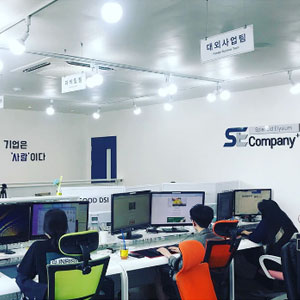

Client screen
Clients see only their own company’s conversation. They can check the staff name and operating hours, and exchange inquiries and files.
AI SERVICES
AI MESSENGER SYSTEM
We build a dedicated messenger where clients and staff ask and reply in one place.
We provide separate screens for clients and staff, and we guide people during operating hours. Inquiries and files stay in the same conversation.
Inquiries that used to be scattered in personal chats are gathered into a dedicated channel. We provide push alerts, an operating-hours notice, emoji reactions, and message replies.
Sample screen · Fictional case
DOES THIS SOUND FAMILIAR?
Inquiries come in, but it is hard to find later who saw them and who replied.

Client inquiries are mixed into personal chats, so records are missing or hard to find.

When the staff member changes, previous conversations have to be asked about again.

There is no notice for inquiries after business hours, so clients cannot tell how long they will wait.
Different staff members give different answers to the same question.

It is hard to know a new inquiry has arrived until someone opens their phone.

A hurried reply about a contract or an amount can go out with the wrong information.
OUR SOLUTION
Clients see only the conversation for their own company, and staff reply to the inquiries they are assigned. Notes that are only for internal use do not appear on the client screen.
Clients and staff each use a different screen.
Inquiries and files stay in the same conversation.
During operating hours we show those hours, and outside those hours we let people know that we will review what they left for us in the next operating hours.
New inquiries and replies are delivered as push alerts.
FEATURES
We provide the features below so inquiries can continue in one place. Features that are already available are not given a separate label.
Clients see only their own company’s conversation. They can check the staff name and operating hours, and exchange inquiries and files.

Staff can see assigned inquiries in one place and reply. They can hand work over with internal notes that clients do not see.

Drafts, photos, and documents can be sent and found again inside the conversation.

People can react to a message with an emoji to leave a short confirmation quickly.
A reply can be attached to a specific message, so it is clear what the answer is about.

When a new inquiry or reply arrives, a phone alert lets you know. The alert does not include the message body. It only tells you that a new message is there.
Operating hours are shown on the client screen. Outside those hours, the notice says: “We are currently outside operating hours. We will review your message and reply during the next operating hours.”
SAMPLE SCREENS
The screens below are samples, and the people and conversations are fictional. They are not conversations from real clients or staff.
Sample screen
Room name: Example planning room
Lee Damdang: Please have Kim Yesi take this notice.
Kim Yesi: Yes, I will follow up and review it.
Alert shown: You have a new message
Sample screen
Other party: Example information channel
Choi Munui: I would like to check the operating hours.
Lee Damdang: Weekday hours are the same as what is shown on the screen. We will review your message and reply.
The items below are features that are in operation. Items that are only in a trial run are not included.
When a new inquiry or reply arrives, a phone alert lets you know. The alert screen does not include the message body. It only shows “You have a new message.”
When a message is held, people can choose to react, reply, copy, mark as unread, or delete.
Staff continue their work in internal chat rooms.
An assignee can be set on a conversation, so it is clear who will follow it up.
Operating hours are shown on the client screen. Outside those hours, we let people know that we will review their message and reply during the next operating hours.
6-STEP PROCESS
The timeline is agreed based on the setup and the scope.
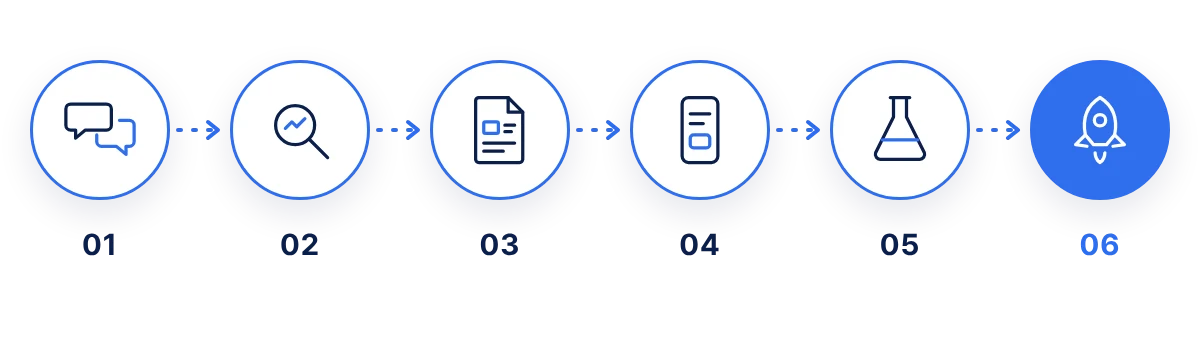
We review how inquiries move today and how staff are assigned.
We organize the information needed on the client and staff screens, the operating hours, and frequently asked questions.
We share a plan for the screens, permissions, and alerts.
We build the messenger to match the plan, and we check in along the way to stay aligned.
We test it in the flow you will actually use, then adjust what is needed.
We stay with you for revisions and support after launch. Any features added later are discussed again.
CUSTOM MESSENGER
On top of the shared features, we adjust the screens and the scope of the notices to match the inquiries and information that actually move in that industry.
If the people who use it and the language they need are different—for example, an in-house messenger for a hospital, guardian updates for a nursing home or a day-care center, or parent updates for an academy—we set it up to match. In medical and care settings, diagnosis and prescriptions are not explained in the messenger. The staff member in charge replies directly.
EXAMPLE CASES
All of the following are sample screens and fictional cases. The organization names—Example Hospital, Example Nursing Home, Example Day Care, and Example Academy—are fictional, and the people and conversations are dummy data. These are not cases from real organizations.
Sample screen · Fictional case
Who uses it: In-house staff such as administration and nursing, and patients or guardians who make inquiries
Main features: Handover conversations between staff, a channel for guardian inquiries, a file box, and an operating-hours notice
Sample screen · Fictional case
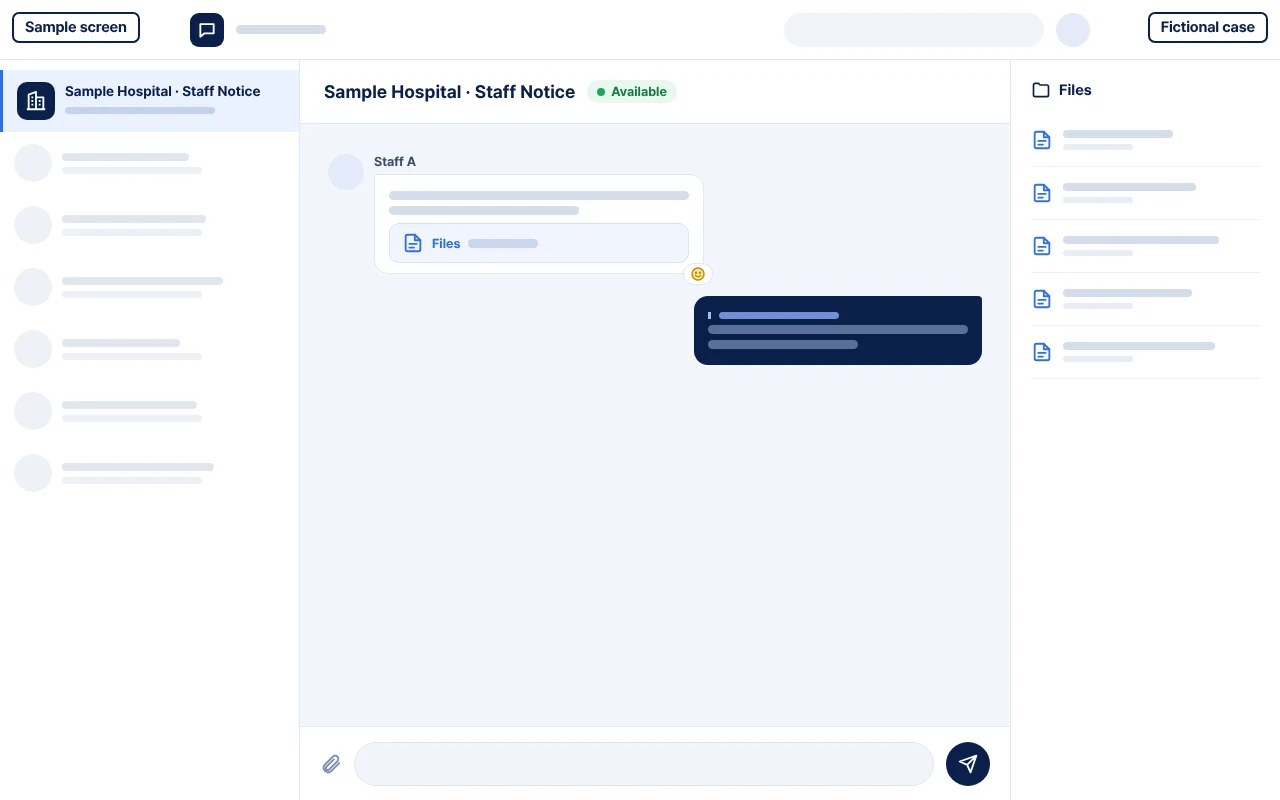
Room name: Example Hospital in-house information
Status: Available
Nurse Lee Damdang: The afternoon visiting guide has been uploaded to the files.
Staff Kim Yesi: An inquiry has arrived from guardian Kim Bohu. Please connect them with the staff in charge.
Sample screen · Fictional case
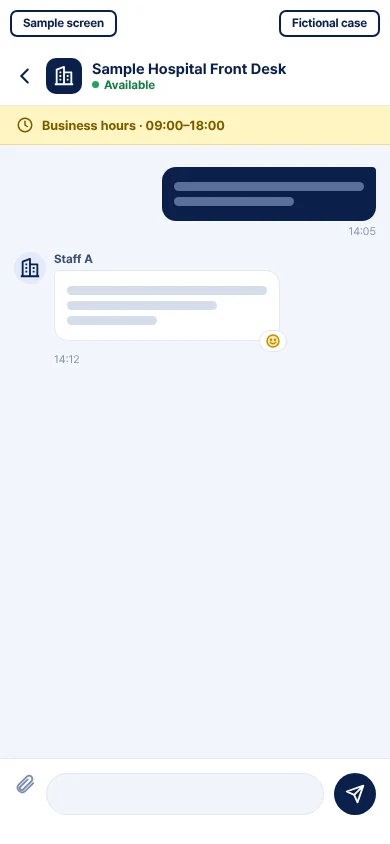
Other party: Example Hospital administration
Yellow bar: Operating hours are shown on this screen.
Kim Bohu: I would like to know how to visit.
Lee Damdang: We will review your message and get back to you.
Sample screen · Fictional case
Who uses it: Nursing home staff and guardians of residents
Main features: Guardian inquiries, daily information files, staff handover, and an operating-hours notice
Sample screen · Fictional case
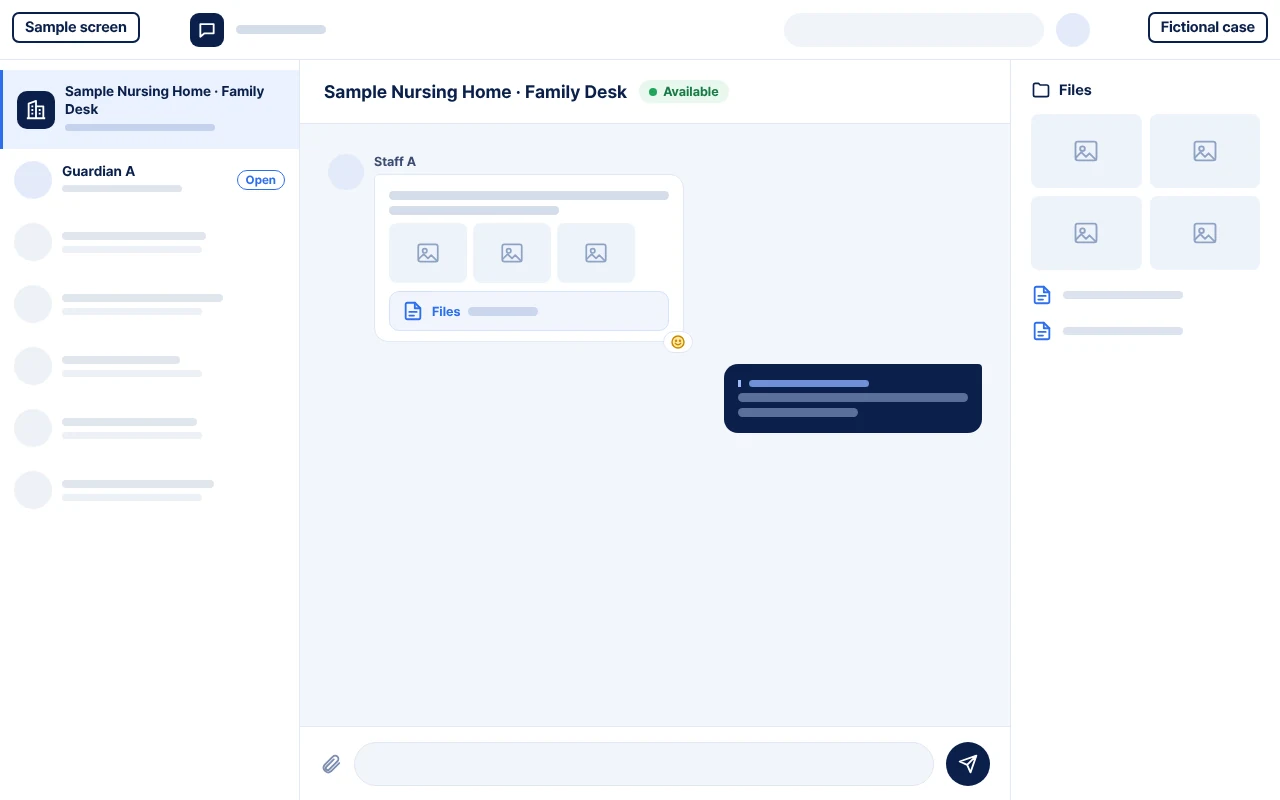
Room name: Example Nursing Home guardian information
Park Jigwon: Today’s activity photos have been uploaded to the files.
An inquiry from Choi Bohu appears as “Open.”
Sample screen · Fictional case
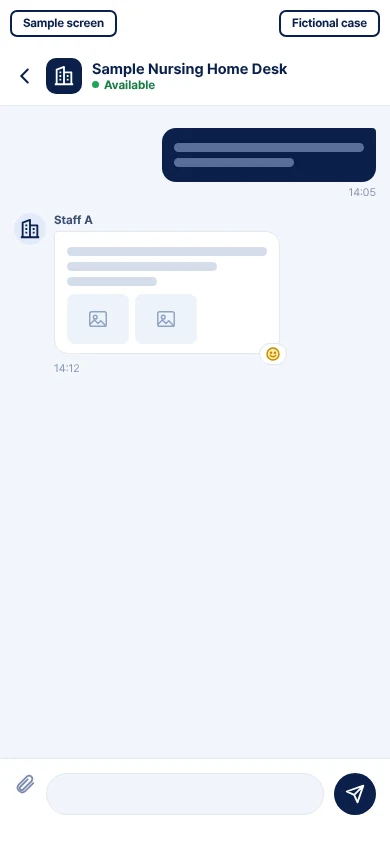
Other party: Example Nursing Home staff information
Choi Bohu: I would like to know this week’s visiting availability and what to prepare.
Park Jigwon: We will review your questions and get back to you.
Sample screen · Fictional case
Who uses it: Day-care center staff and guardians of users
Main features: Inquiries about arrival and departure, notice files, staff replies, and an operating-hours notice
Sample screen · Fictional case
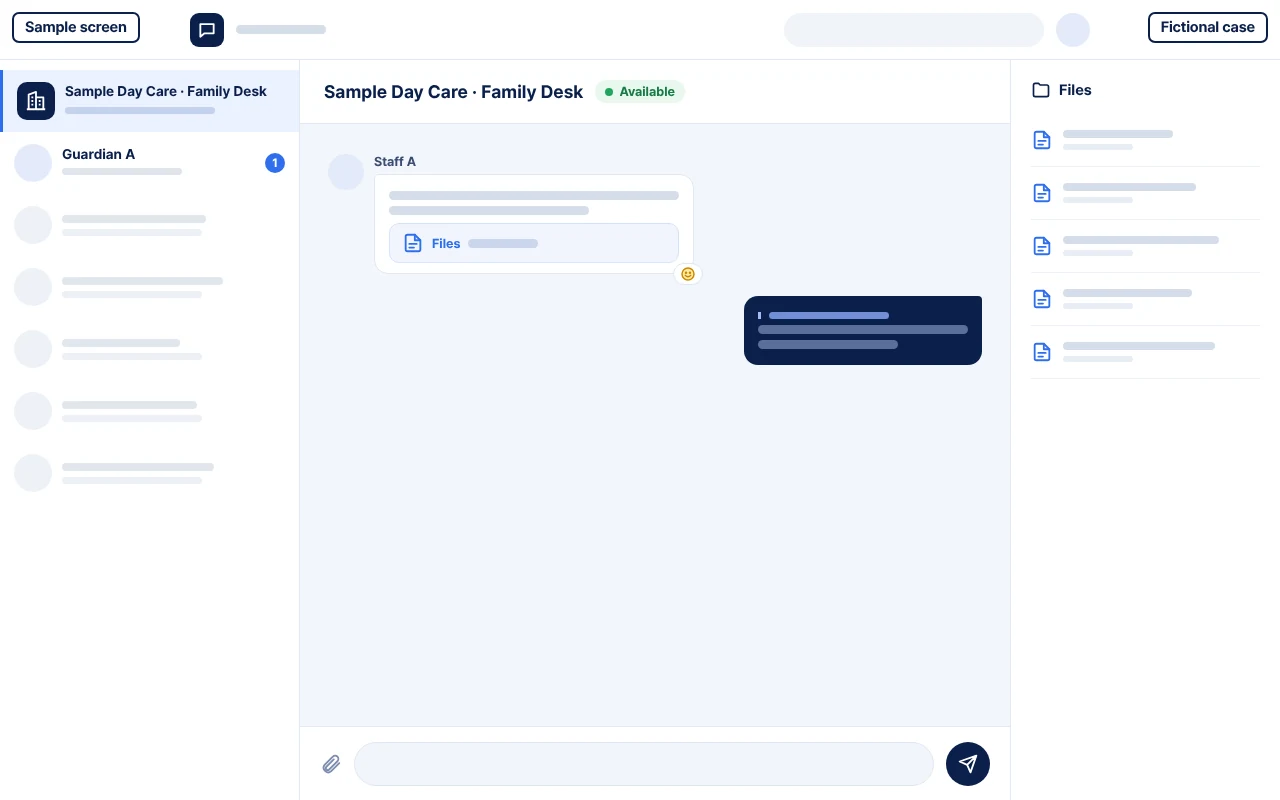
Room name: Example Day Care guardian information
Jung Jigwon: This week’s program guide is in the files.
An inquiry from Yoon Bohu appears as having arrived.
Sample screen · Fictional case
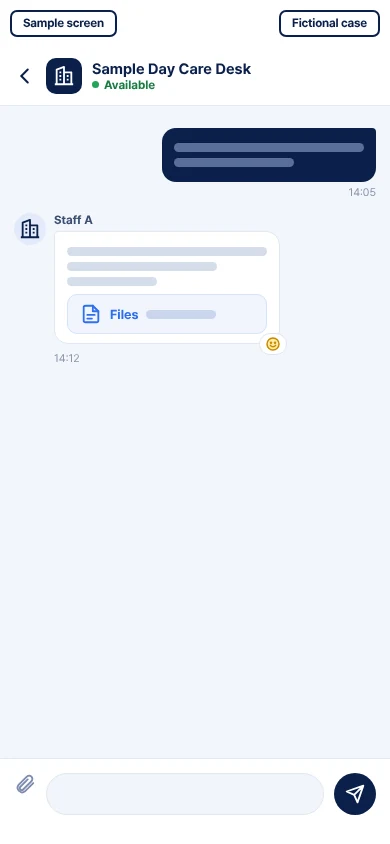
Other party: Example Day Care staff information
Yoon Bohu: I would like to know tomorrow’s supplies and the program.
Jung Jigwon: Please check this week’s guide in the files, and I will answer any remaining questions.
Sample screen · Fictional case
Who uses it: Academy staff or instructors, and parents
Main features: Parent inquiries, class materials, staff replies, and an operating-hours notice
Sample screen · Fictional case
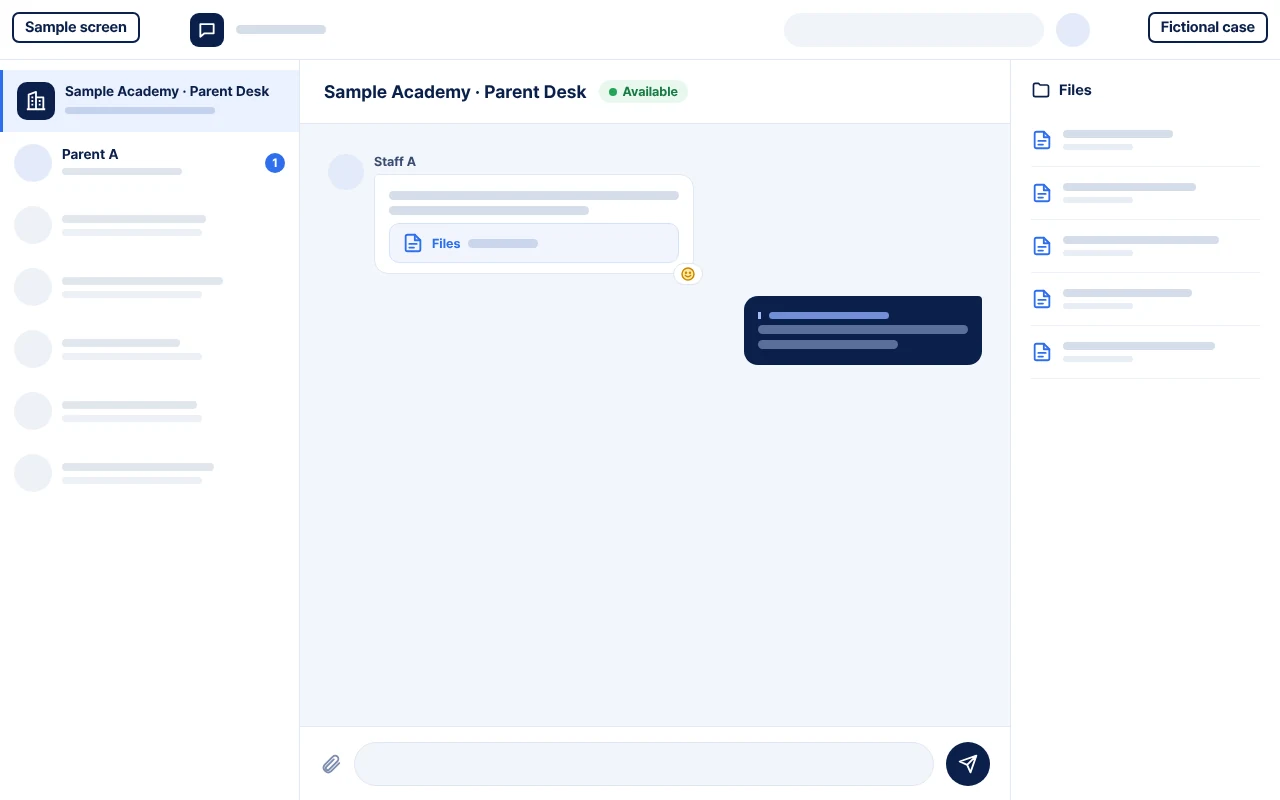
Room name: Example Academy parent information
Instructor Han Gangsa: This week’s study guide has been uploaded to the files.
An inquiry from Oh Hakbumo appears as having arrived.
Sample screen · Fictional case
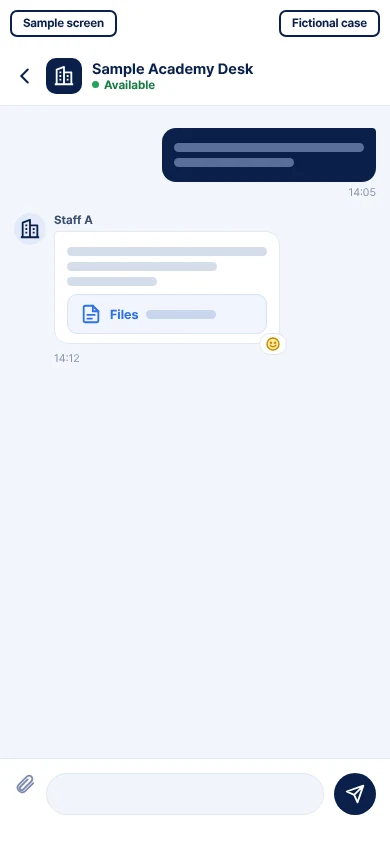
Other party: Example Academy staff information
Oh Hakbumo: I would like to know the class supplies and how to request a consultation.
Han Gangsa: The supplies guide has been uploaded to the files. A staff member will confirm the consultation and get back to you.
WHY SE COMPANYPLUS?
We plan separate screens for clients and staff from the start.
We set it up so internal notes and information from other companies do not appear on the client screen.
If a custom setup is needed for an industry, we adjust the screens and the scope of the notices.
Consultation, planning, development, a trial run, and support after launch are handled as one process.
PRICING
The setup changes with the number of people who will use it, the screen layout, and the custom scope for your industry. After we confirm the features you need in a consultation, we provide a quote. The timeline is agreed together.
TALK IN ONE PLACE
Clients and staff ask and reply in one place. Inquiries and files stay in the same conversation.
SE COMPANYPLUS Co., Ltd.
Daegu Headquarters | 6F, 149 Joam-ro, Dalseo-gu, Daegu, Republic of Korea
Gyeonggi·Incheon Branch | Unit 401, Woochang Bldg., 1 Seunghak-ro 483beon-gil, Seo-gu, Incheon, Republic of Korea (Geomam-dong)
Email: dotoly7080@secompanyplus.com